
Installation · Meta Quest
Steam Link
Steam Link enables a wireless connection between a Meta Quest headset and SteamVR on your PC. You need the Steam Link app on the headset and Steam on the PC.
Not recommended for Meta Quest.
Steam Link pauses the execution of ViRTUE whenever the VR headset is turned off. The user interface then freezes and the operator cannot interact with ViRTUE again until the headset is turned back on. We therefore do not recommend using Steam Link with Meta Quest VR headsets.
First-time setup
On your PC
-
Install Steam and SteamVR on your PC if you have not already done so. See Install SteamVR.
- Open Steam and SteamVR on your PC.
On your VR headset
-
Get the free Steam Link app for Meta Quest: Steam Link on the Meta Store. When getting it, use the same Meta account you are logged in with on your Meta Quest VR headset.
-
Put on your headset and press the Oculus/Meta button on your right Touch controller to open the main menu.

Position of the Oculus/Meta button -
Make sure your Meta Quest VR headset is connected to a Wi-Fi network and can access the internet (guide from Meta).
-
Open the App Library (the icon made up of a 3-by-3 grid of dots), located on the right side of the main menu.
- Search for “Steam Link” using the search field.
-
In the list of search results, click the Steam Link application to install it.
- Wait until the installation process is complete.
- Start the Steam Link app on your Quest VR headset.
-
Select your PC from the list and click Connect.
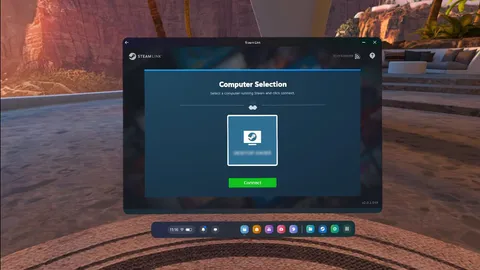
Select a PC from the list -
The first time you use Steam Link, your Meta Quest VR headset has to be paired with the Steam app on your PC. To do this, make a note of the 4-digit number combination shown.
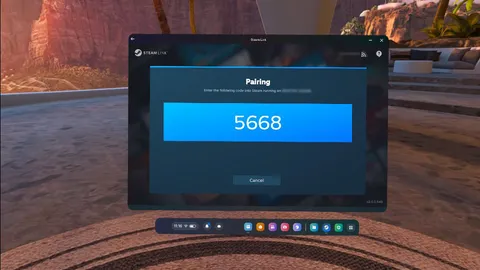
4-digit pairing code - Then take off your Meta Quest VR headset.
-
Enter the 4-digit number combination in the window shown on your PC and then click Confirm to complete the pairing process.
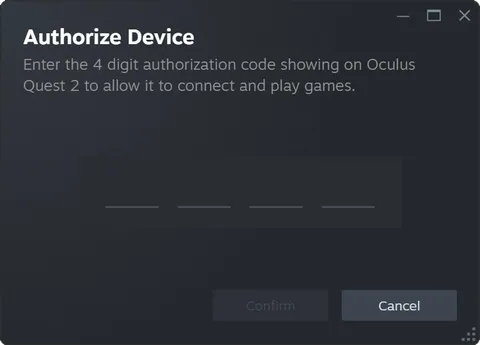
Confirm the pairing code on the PC
Starting ViRTUE with Steam Link
Follow the instructions in the Preparation section before you begin the steps below.
On your PC
- Start the PC and log in to your user profile.
- Open Steam on your PC.
On your VR headset
- Turn on your Meta Quest VR headset.
-
Put on your headset and press the Oculus/Meta button on your right Touch controller to open the main menu.
Position of the Oculus/Meta button -
Open the App Library (the icon made up of a 3-by-3 grid of dots) and select the Steam Link app to start it.
-
Select your PC from the list and click Connect.
Select a PC from the list -
Once you see this environment, you are connected to SteamVR.

SteamVR is connected
On your PC
- Now switch to your PC.
- Start ViRTUE.
On your VR headset
- Now switch back to your VR headset.
-
Wait until ViRTUE has started.
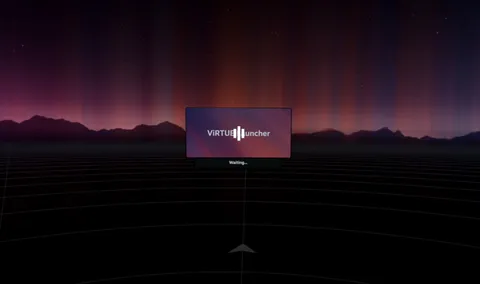
ViRTUE is starting -
Once you are in a bright cloud world, you have successfully started ViRTUE.

ViRTUE has started successfully