
The ViRTUE App
New session
Before a new session, you can optionally record user data and configure the session.
You can skip the first screen if you do not want to record any user data. Click the Start session button directly to begin the patient visit.
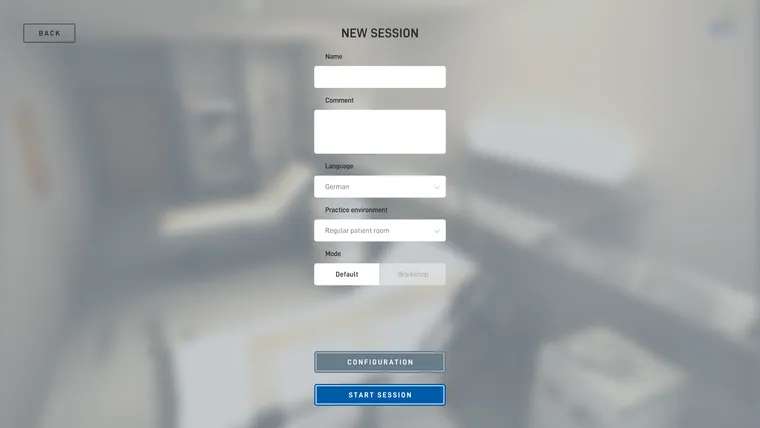
Name
Before the patient visit you optionally have the option of assigning the session recordings to a user. The data you enter stays local on your PC. Enter the desired value in the Name field.
Comment
Use the comment field if you want to record additional information about the training.
Language
Select the user language from the dropdown list. This displays all text elements in the patient room in the corresponding language. The language of the user interface is not changed by this. You can adjust that in the Settings.
Practice environment
- Regular patient room - when an open, walkable area of about 10 x 4 metres is available for the training. This patient room has a bathroom.
- Compact patient room - when only an open, walkable area of about 8 x 4 metres is available for the training. This patient room has a more space-saving layout and does not have a bathroom.
Mode
- Default mode - you can carry out any number of consecutive patient visits, all configured identically.
- Workshop mode - you complete three consecutive patient visits, each of which can be configured individually.
Configuration
Select Configuration to customise the session individually. More on this under Configure session.
Start session
Click Start session to begin the patient visit.