
Installation · Pico
Pico Connect (USB)
Pico Connect connects a Pico 4 headset to your PC over a wired USB connection. This page covers the steps for starting ViRTUE over USB.
You’ll find the guide for first-time setup under Pico 4.
Start ViRTUE with Pico Connect
Follow the instructions in the Preparation section before you begin the steps below.
On your PC
- Make sure the ViRTUE and SteamVR applications are not running.
-
Open the Pico Connect app.
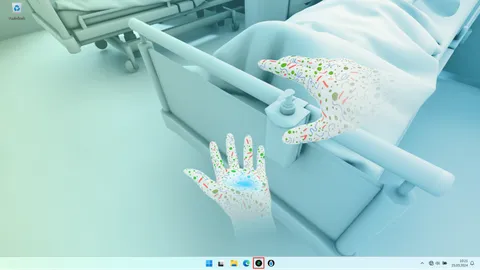
Pico Connect app on the PC
On your VR headset
- Open the Pico Connect app.
-
Put on your headset and press the Home button on the controller to open the main menu.
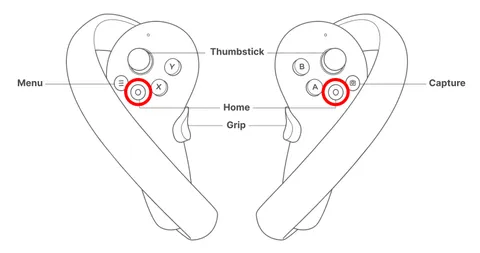
Home button on the Pico controller -
In the main menu, open the Library.
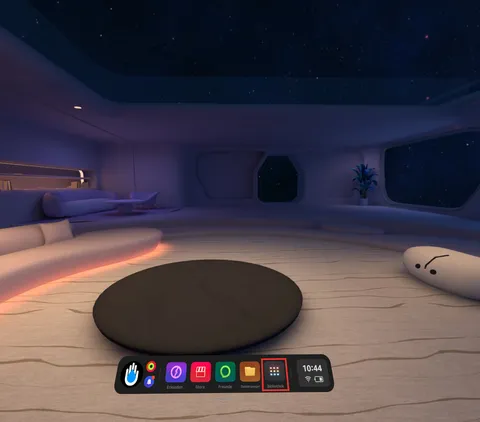
Library in the Pico main menu -
Select the Pico Connect app in the Library.
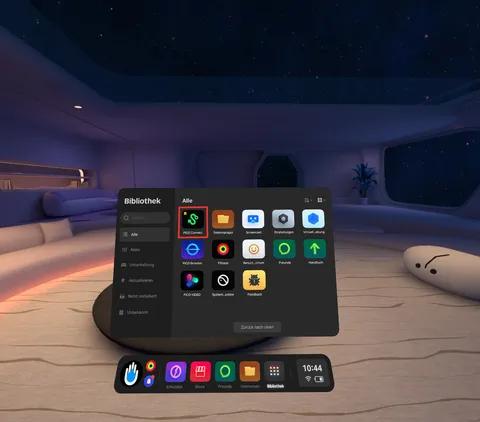
Pico Connect app in the library - Wait until you see the Windows desktop environment on your VR headset.
-
Start ViRTUE. Click the ViRTUE program shortcut on the Windows desktop, or search for ViRTUE in the Windows Start menu.
ViRTUE shortcut on the Windows desktop -
Wait until ViRTUE has started. This can take up to a minute.
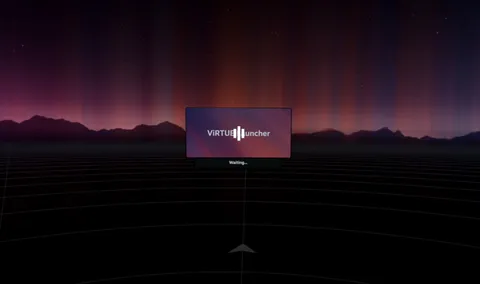
ViRTUE is starting -
Once you find yourself in a bright cloud world, you have successfully started ViRTUE.

ViRTUE has started successfully
Troubleshooting
The PC does not appear under Available Devices in the Pico Connect app.
- Make sure the VR headset and the PC are connected to each other with a USB 3.0 cable. Check that the cables are plugged in correctly and firmly enough.
- Restart your Pico VR headset.
- Restart your PC.
- Make sure you have started the Pico Connect app on your PC.
- Make sure you have started the Pico Connect app on your VR headset.
- Try different USB 3.0 cables.
- Try different USB 3.0 ports on the PC.
I started ViRTUE, but it does not appear in my VR headset.
- Close the Pico Connect app on both the PC and the VR headset.
- Close SteamVR if it is open.
- Restart the Pico VR headset.
- Now follow the steps for starting ViRTUE again.
The screen of my Pico 4 VR headset turns off on its own.
Between the lenses of the VR headset there is a presence sensor that detects whether you are wearing the headset. Make sure nothing is covering the presence sensor.