
Installation · Meta Quest
Meta Quest Air Link (Wi-Fi)
With the official Oculus desktop app and Meta Quest Air Link, you can connect your Meta Quest 2, 3, or Pro wirelessly to your PC.
First-time setup
On your PC
-
Download the Oculus desktop app to your PC: oculus.com/download_app.
- Run the downloaded setup wizard to install the Oculus desktop app on your PC.
- Open the Oculus desktop app on your PC.
On your VR headset
- Turn on your Meta Quest VR headset.
-
Put on your headset and press the Oculus/Meta button on your right Touch controller to open the main menu.

Position of the Oculus/Meta button -
Open the quick settings on the left side of the main menu.
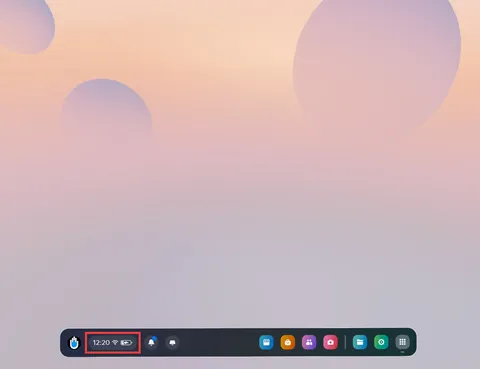
Quick settings in the main menu -
In the quick settings, select Quest Link.
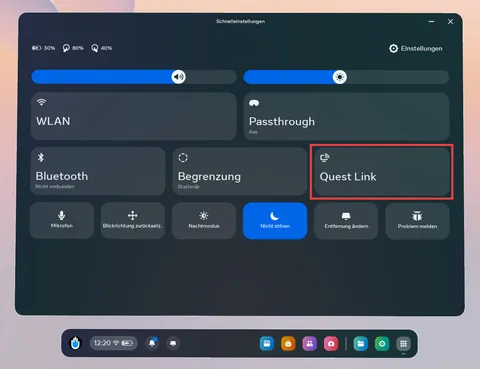
Quest Link in quick settings - Turn on Use Air Link.
- Select your PC from the Available Computers list.
- Now select Pair.
-
Check that the Oculus desktop app is open and that your Meta Quest VR headset and your PC are connected to the same network.
-
A pairing code now appears in your VR headset. Take off your VR headset and check that the code shown on your PC matches the code you see in your VR headset.
No pairing code visible?
Make sure that both your Meta Quest VR headset and your Oculus desktop app are up to date:
- In the Oculus desktop app, click Confirm. Then put your headset back on.
- Select Launch to use Air Link.
After the first-time pairing:
You can enable Air Link directly from the quick settings panel going forward.
Starting ViRTUE with Air Link
Follow the instructions in the Preparation section before you begin the steps below.
On your PC
- Start the PC and log in to your user profile.
- Open the Oculus desktop app on your PC.
- Make sure SteamVR is closed.
On your VR headset
- Enable Air Link on your Quest VR headset.
-
Put on your headset and press the Oculus/Meta button on your right Touch controller to open the main menu.
Position of the Oculus/Meta button -
Open the quick settings on the left side of the main menu.
Quick settings in the main menu -
In the quick settings, select Quest Link.
Quest Link in quick settings - Turn on Use Air Link.
- Select your PC from the Available Computers list.
-
Select Launch to use Air Link.
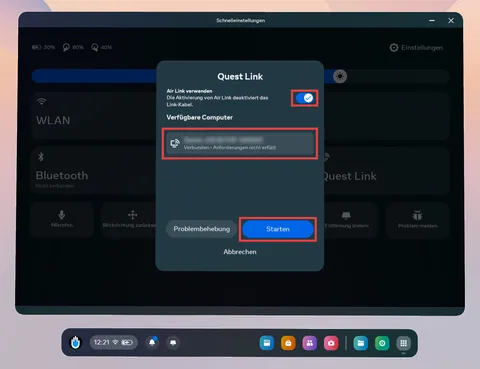
Enable Air Link and select PC
On your VR headset
-
Wait until the Oculus desktop environment appears in the headset.
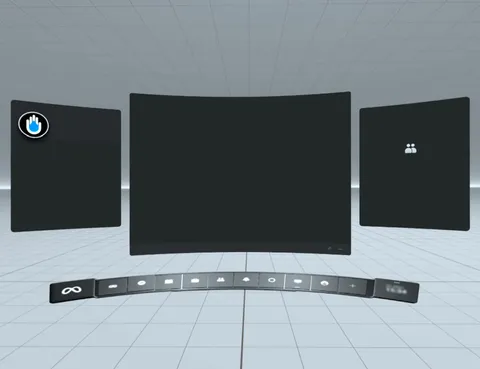
Oculus Desktop inside the headset -
Switch to the library.
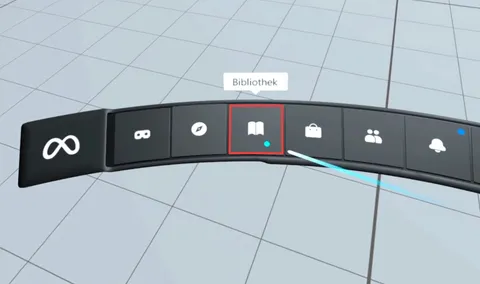
Library in the Oculus Desktop environment -
Start SteamVR. Once you are in this dark world, you can take off the VR headset.

SteamVR is connected
On your PC
- Now switch to your PC.
- Start ViRTUE.
On your VR headset
- Now switch back to your VR headset.
-
Wait until ViRTUE has started.
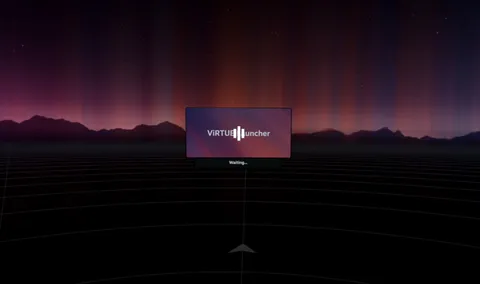
ViRTUE is starting -
Once you are in a bright cloud world, you have successfully started ViRTUE.

ViRTUE has started successfully
Notes
- Connect your Meta Quest VR headset via Air Link first, before you start ViRTUE.
- If you want to quit ViRTUE and start it again, quit SteamVR first.
Troubleshooting
My PC does not appear under Available Computers in the Air Link menu.
- Restart your Quest VR headset (guide from Meta).
- Restart your PC.
- Make sure the VR headset and the PC are connected to the same network.
- Make sure you have started the Oculus app on your PC.
- Make sure you have registered your Quest VR headset in the Oculus app on your PC:
- Open the Oculus app on your PC.
- Click Devices in the left sidebar.
- If your Quest VR headset is not listed, click Add Headset and follow the steps in the app.
- Restart the Oculus app on your PC:
- Open the Oculus app on your PC.
- Click Settings in the left sidebar.
- In the horizontal menu, select the Beta tab.
- Click Restart Oculus / Restart Meta Quest Link.
- If the app does not restart, close it via Task Manager.
If you are using a Wi-Fi router:
- Make sure the PC is connected to the Wi-Fi router via a network cable. Check that the cables are plugged in firmly enough.
- Make sure the network cable is plugged into a switch port on the Wi-Fi router and not into the WAN port (internet).
- Make sure the PC is not additionally connected to a Wi-Fi network.
The connection between my Quest VR headset and my PC is unstable.
- Run the Quest Air Link troubleshooter.
- Make sure there is an unobstructed, direct line of sight between your Quest VR headset and your network router / Wi-Fi access point.
- Make sure the distance between your Quest VR headset and your network router / Wi-Fi access point is less than 10 metres.
- Make sure your network router / Wi-Fi access point is not obstructed but placed out in the open.
- Make sure your Quest VR headset is connected to a 5 GHz Wi-Fi network, not a 2.4 GHz one.
- Make sure your network router / Wi-Fi access point supports at least the Wi-Fi 5 / 802.11ac standard. We recommend Wi-Fi 6 / 802.11ax or newer.
- Make sure that both your PC and your network router support Gigabit Ethernet connections and that your PC is connected to the network router with a CAT5e LAN cable or better.
If you are using a laptop:
- Make sure the laptop is connected to a power source. If you only connected the laptop afterwards, close all programs (ViRTUE, Oculus desktop app, SteamVR).
- If your laptop has both an integrated and a dedicated GPU, make sure ViRTUE runs on the dedicated GPU.
I have a problem with my Meta Quest VR headset.
If you run into problems while using your Meta Quest VR headset, you can either search for answers in the Meta Quest Community Forum or contact Meta Support.