
The ViRTUE App
Settings
In the settings you adjust the behaviour of the app, locomotion in VR, the grab mode, and other options to suit your needs.
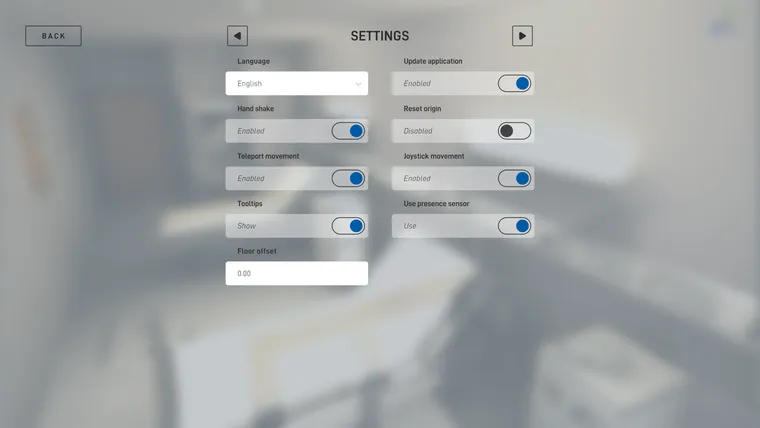
Language
Select the language in which ViRTUE’s user interface is displayed on the PC.
Update application
When enabled, ViRTUE automatically updates to the latest version on startup.
Hand shake
When this option is enabled, greeting the patient with a handshake is one of the tasks of the visit.
Tooltips
When this option is enabled, help texts are shown for the user interface elements. To do so, move the mouse pointer over an element to display the corresponding hint.
Use presence sensor
When this option is enabled, ViRTUE uses the VR headset’s presence sensor to detect whether the user is currently wearing the VR headset. If it is detected that the user is not in VR, the view of the VR environment on the PC screen is hidden during the visit.
Reset origin
When teleport movement or joystick movement is enabled, the user can move within the virtual environment without moving accordingly in the real space. As a result, the virtual and the real centre point can diverge from each other.
If this setting is enabled, an additional step appears after a visit ends and before the next visit starts: the user is shown in VR where the real centre point is located. The user is prompted to move there. Afterwards, the virtual and the real centre point match again.
Teleport movement
When teleport movement is enabled, the user can teleport to predefined points in the patient room. This function is especially helpful when only limited space is available for the VR training and the virtual room cannot be fully walked through with real steps.
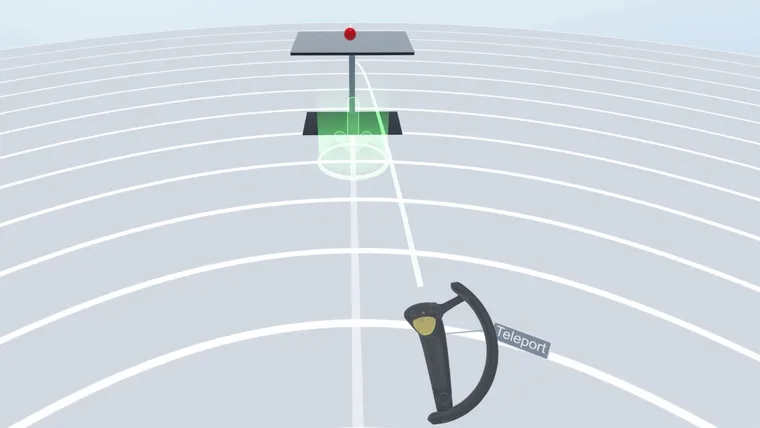
To teleport, the user holds down the trigger button on the controller. The available teleport points are then displayed and a laser beam appears from the user’s hand. By aiming the hand, the user can point the laser beam at a teleport point. Once the laser beam points at the desired point, the user releases the trigger button and is teleported to that position.
Joystick movement
When joystick movement is enabled, the user can move freely around the patient room using the joystick. This function is especially helpful when only limited space is available for the VR training.
Compared to teleport movement, the movement is not restricted to predefined points. Instead, the user can move continuously and freely through the space.
Because continuous movement in VR can cause discomfort or dizziness in some people, this function should only be enabled for experienced VR users.
Floor offset
If the height of the virtual floor does not match the height of the real floor, you can compensate for the discrepancy with this function.
The value is given in metres. A value of 0.1, for example, corresponds to an offset of 10 cm. The value can also be negative, for example -0.15.
Changes take effect immediately. It is therefore advisable to check directly in VR whether the entered value produces the desired result. As a rule, this value does not need to be adjusted and is set to 0.0 by default.
Grab mode
- Click grip button: The grab button must be pressed once briefly to pick up an object. The object then stays in the hand until the grab button is pressed briefly again.
- Hold grip button: The grab button must be held down continuously to hold an object. As soon as the grab button is released, the held object is also released.
Thermometer filter automation
- Automatic: Attaching and removing the filter caps on the thermometer is automated. As soon as the user picks up the thermometer, a filter cap is attached automatically. After the cap has been disposed of following a measurement, a new cap is attached automatically. When the thermometer is placed back into the base station, any attached filter cap is removed automatically.
- Manual: The user must attach and dispose of the filter cap themselves. Before measuring the temperature, the user attaches a filter cap by holding the thermometer close to the base station. After the measurement, or before the thermometer is placed back into the base station, the filter cap must be removed. To do so, the user holds the thermometer close to the trash bin and presses the trigger button on the controller. This detaches the filter cap from the thermometer and disposes of it in the trash.
Germ View Tutorial Step
When this option is enabled, the germ view is explained to the user as the last step in the tutorial. This shows how germs are made visible and how the user can interact with objects that are contaminated with different germ types.
Disable this option if the germs are only to be shown at a later point during the actual visit. This preserves the first impression, or the element of surprise.
You can find additional sub-settings on the following pages: